Day 5 - Advanced Linux Shell Scripting for DevOps Engineers with User Management

🌟 Cloud & DevOps Enthusiast 🚀 | Passionate about leveraging cloud technologies and DevOps practices for seamless software development and deployment. Join me on this exciting journey to explore the limitless possibilities of the cloud and enhance your DevOps skills. 🌤️💻 Let's innovate and transform together! 🚀
🌟 Introduction 🌟
Welcome to Day 5 of the #90DaysOfDevOps challenge! Today, we're delving into advanced Linux shell scripting, focusing on Creating Dynamic Directories, Automated Backup scripts, Automating the Backup Script with Cron, User Management in Linux, and Creating and Displaying Usernames. Shell scripting is a crucial skill for DevOps engineers as it enables task automation and streamlining. We'll explore two practical scripts that are useful for organizations. Let's dive in and unlock the power of shell scripting! 💻🚀
📁 Creating Dynamic Directories
Let's create a user-friendly shell script named task1.sh that generates directories with dynamic names.
#!/bin/bash

# Check for exactly 3 arguments
if [ "$#" -ne 3 ]; then
    echo "Please use the following sequence: ./createDirectories.sh <directory-name> <start-number> <end-number>"
    exit 1
fi

# Assign arguments to variables
directory_name=$1
start_number=$2
end_number=$3

# Check if the input is numeric
if ! [[ "$start_number" =~ ^[0-9]+$ ]] || ! [[ "$end_number" =~ ^[0-9]+$ ]]; then
    echo "Start number and end number must be numeric."
    exit 1
fi

# Check if start number is less than or equal to end number
if [ "$start_number" -gt "$end_number" ]; then
    echo "Start number should be less than or equal to end number."
    exit 1
fi

# Create directories
for ((i=start_number; i<=end_number; i++)); do
    mkdir "$directory_name$i"
done

echo "Directories successfully created!"
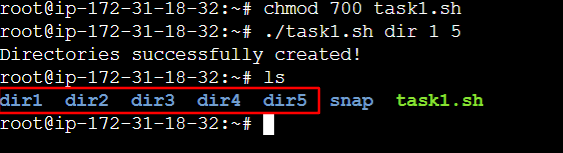
The script will ask for input, including the base name for the directories, the starting number, and the ending number. It will validate the input to ensure the numbers are numeric and that the starting number is less than or equal to the ending number. After validation, the script will create directories with names ranging from the start to the end number. This makes it easy to create a series of directories with different names in a hassle-free manner. 📂💻🚀
To make it executable use the command "chmod 700 task1.sh," and then run it with "./task1.sh" in the terminal.
💾 Automated Backup Script
Let's create a script that will do system backups by compressing and archiving a source directory to a target location. It automates data safety, ensuring recovery options in case of data loss or system failures. Users can conveniently back up important files and directories with ease.
#!/bin/bash

# Define source and target directories
src_dir="/root/scripts"
trg_dir="/root/backups"

# Get the current timestamp
curr_time_stamp=$(date "+%Y-%m-%d-%H-%M-%S")

# Create backup file name with timestamp
backup_file_name="$trg_dir/backup-$curr_time_stamp.tgz"

# Inform the user about the backup process
echo "📂  Taking backup of '$src_dir' on $curr_time_stamp ⌚ "

# Create the backup archive using tar
tar -czf "$backup_file_name" "$src_dir"

# Inform the user when the backup is complete
echo "✅  Backup Completed! The backup file is saved as 'backup-$curr_time_stamp.tgz' in '$trg_dir'. 🚀"
This Bash script is designed to create a backup of the files in the "/root/scripts" directory. It generates a timestamp to form a unique filename for the backup and saves it in the "/root/backups" directory. The user is informed about the backup process with echo statements displaying emojis representing a folder (📂) and a clock (🕐). The tar command is then used to compress and create the backup archive, and once the backup is complete, the user is notified with a message.

🕐 Automating the Backup Script with Cron
Cron is like a time-based task scheduler for Linux. You can use it to automate your backup script and make it run at specific times. Here's how you can set it up:
Open a terminal or command prompt.
Type the command: crontab -e to edit the cron schedule.
Add a new line to schedule the backup script. For example, to run it daily at 7:00 PM, write:
19 * * * /path/to/your/backup_script.sh
Replace "/path/to/your/backup_script.sh" with the actual path to your backup script.
Save the cron schedule and exit the text editor.
Now, your backup script will run automatically at the specified time. It's like setting an alarm for your script! 🕰️🚀
👤 User Management in Linux
User management is an important aspect of controlling access and privileges in Linux systems. Here are some essential commands to help you manage users:
👤 To create a user, use the "useradd" command. For example:
sudo useradd username
🗑️ To delete a user, use the "userdel" command. For example:
sudo userdel username
✏️ To modify user properties, such as their password or home directory, use the "usermod" command. For example:
sudo usermod -d /new/home/directory username
📄 To display user information, use the "id" or "finger" command. For example:
id username
finger username
Remember to run these commands with administrative privileges using "sudo" to ensure proper user management. 🛡️🔑
👥Creating and Displaying Usernames 👀
To create users and display their names, follow these simple steps:
🖥️ Open a terminal or command prompt.
✨ Run the following command to create the first user:
sudo adduser user1
Fill in the required details as prompted.
🔄 Repeat the previous step to create the second user:
sudo adduser user2
Again, provide the necessary information.
📋 To display the usernames, use this command:
awk -F: '{print $1}' /etc/passwd
This command fetches the usernames from the /etc/passwd file.
By learning these user management commands, you can efficiently handle user accounts on Linux systems. 🚀🔧
🎉 Conclusion 🎉
Congratulations on completing Day 5 of the #90DaysOfDevOps challenge. 🌟 Today, we explored a wide range of topics, including creating dynamic directories, setting up automated backup scripts, and automating backups with Cron. We also delved into user management in Linux, learning how to create and display usernames. 💻🔧
Keep up the great work and stay committed to your DevOps journey! 🚀💡 Each day brings new opportunities for growth and learning. Remember to celebrate your achievements and embrace the challenges ahead. Let's continue this exciting adventure together! 🌟👩💻📚
Stay in the loop with my latest insights and articles on cloud ☁️ and DevOps 🚀 by following me on Hashnode, LinkedIn (www.linkedin.com/in/nishit1907), and GitHub (https://github.com/NISHIT-RAJANI).
Thank you for reading! 🙏 Your support means the world to me. Let's keep learning, growing, and making a positive impact in the tech world together.


